Last updated: 17 September 2026 | Change log
A cross-border payment solution that connects businesses with a vast network of digital wallets across Asia and globally.
Make yourself familiar with our API principles to ensure a resilient integration.
Product overview
Alipay+, also written as Alipay Plus or Alipay Uni, acts as a unified gateway, allowing international buyers to pay with their preferred local e-wallets.
For both online and in-store transactions, Alipay+ facilitates real-time deductions from your customer's local e-wallet, automatically converting payments into the merchant's currency and sending the amount directly to their acquirer.
Its unified integration significantly simplifies cross-border payment acceptance, reducing the cost associated with managing multiple individual e-wallet integrations.
Its streamlined process enables high conversion rates, with low chargeback/dispute rates.
| Payment type | Recurring | Reversals | Partial reversals | Auth and settlement (sale) |
|---|---|---|---|---|
| Digital wallet | ❌ |
|
| ✅ |
Maximum payment amount 10,000 USD. If you require a higher amount please discuss your requirements with your Relationship Manager or Support team.
| Wallet | Market |
|---|---|
| Alipay | Chinese mainland |
| AlipayHK | Hong Kong SAR, China |
| BillEase | Philippines |
| Boost | Malaysia |
| BPI | Philippines |
| DANA | Indonesia |
| GCash | Philippines |
| Hipay | Mongolia |
| K Plus | Thailand |
| Kakao Pay | South Korea |
| Kredivo | Indonesia |
| NAVER Pay | South Korea |
| Rabbit LINE Pay | Thailand |
| Tinaba | Italy |
| Touch 'n' Go eWallet | Malaysia |
| Toss Pay | South Korea |
| TrueMoney Wallet | Thailand |
Alipay+ retains discretion regarding wallet onboarding approvals. We cannot guarantee the universal availability of all wallets across all merchants.
| Market | Currency |
|---|---|
| UK | GBP1, CNY2, HKD2, EUR2, KRW2, PHP2, THB2, MNT2, MYR2, IDR2 |
| Europe | EUR1, CNY2, HKD2, KRW2, PHP2, THB2, MNT2, MYR2, IDR2 |
| Hong Kong | HKD1, CNY2, EUR2, KRW2, PHP2, THB2, MNT2, MYR2, IDR2 |
| Singapore | SGD1, CNY2, HKD2, EUR2, KRW2, PHP2, THB2, MNT2, MYR2, IDR2 |
| Japan | JPY1 |
1Indicates that you can authorize and receive funds in the same currency without any FX consideration for all wallets.
2Indicates that you can authorize in this currency, but you receive funds in a different currency for some wallets.
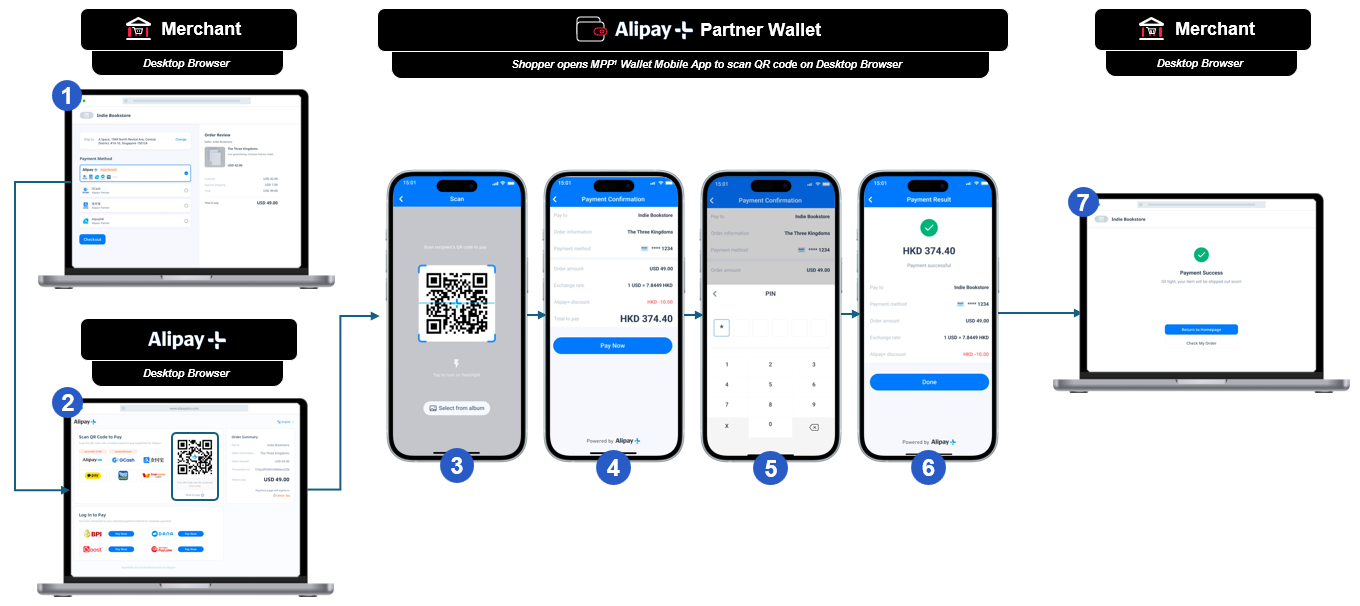
- Your customer chooses Alipay+ as their payment method on your desktop site.
- They are redirected to the Alipay+ payment page, which displays the Alipay+ QR code.
- Your customer scans the QR code using the scan function within their Alipay+ mobile app.
- They are presented with the transaction details and funding options. Your customer then confirms payment.
- They enter the payment password to authenticate the transaction.
- Your customer receives confirmation that the payment is successful.
- Back on your customer's desktop browser, Alipay+ confirms that the payment is successful and redirects your customer to your payment success page (defined by the
successURL).
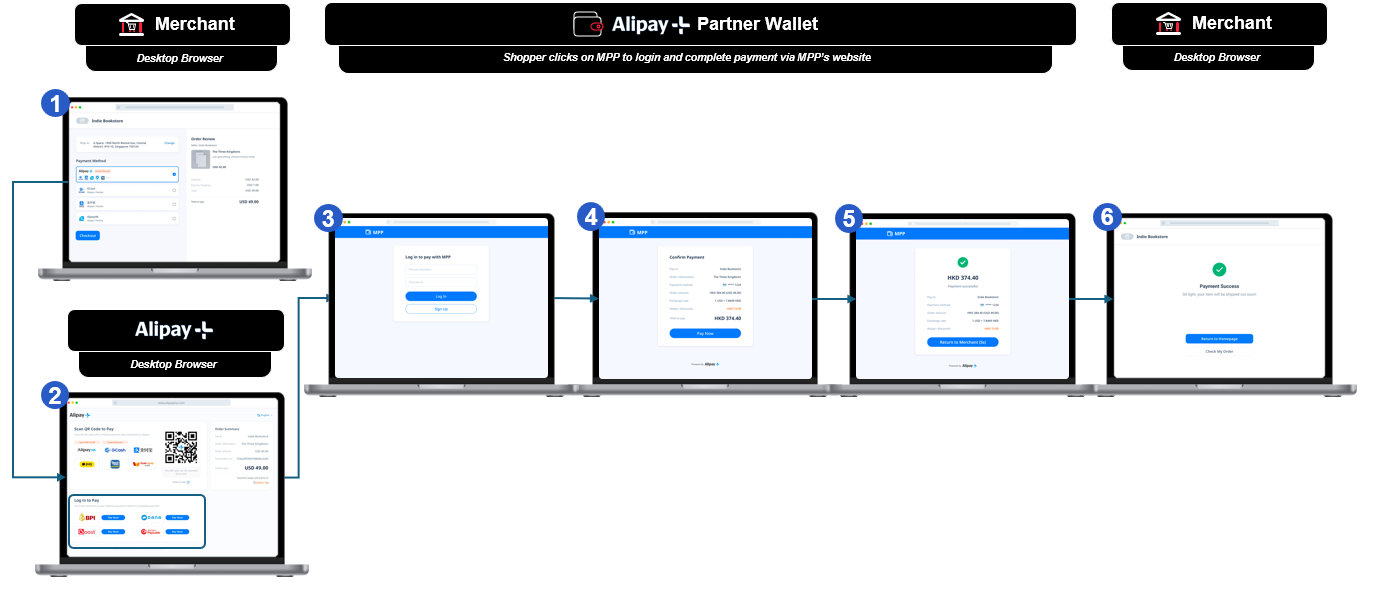
- Your customer chooses Alipay+ as their payment method on your desktop site.
- They click on the checkout button and are taken to the Alipay+ checkout page. Alipay+ determines your customer's locally available wallets using their IP address. Locally available wallets are displayed at the top of the page, with other wallets below. Your customer chooses their preferred wallet.
- Your customer confirms payment in the wallet application, e.g. Alipay CN - KaKaoPay.
- They receive confirmation that the payment is successful.
- Your customer is redirected back to your specified
successURL.
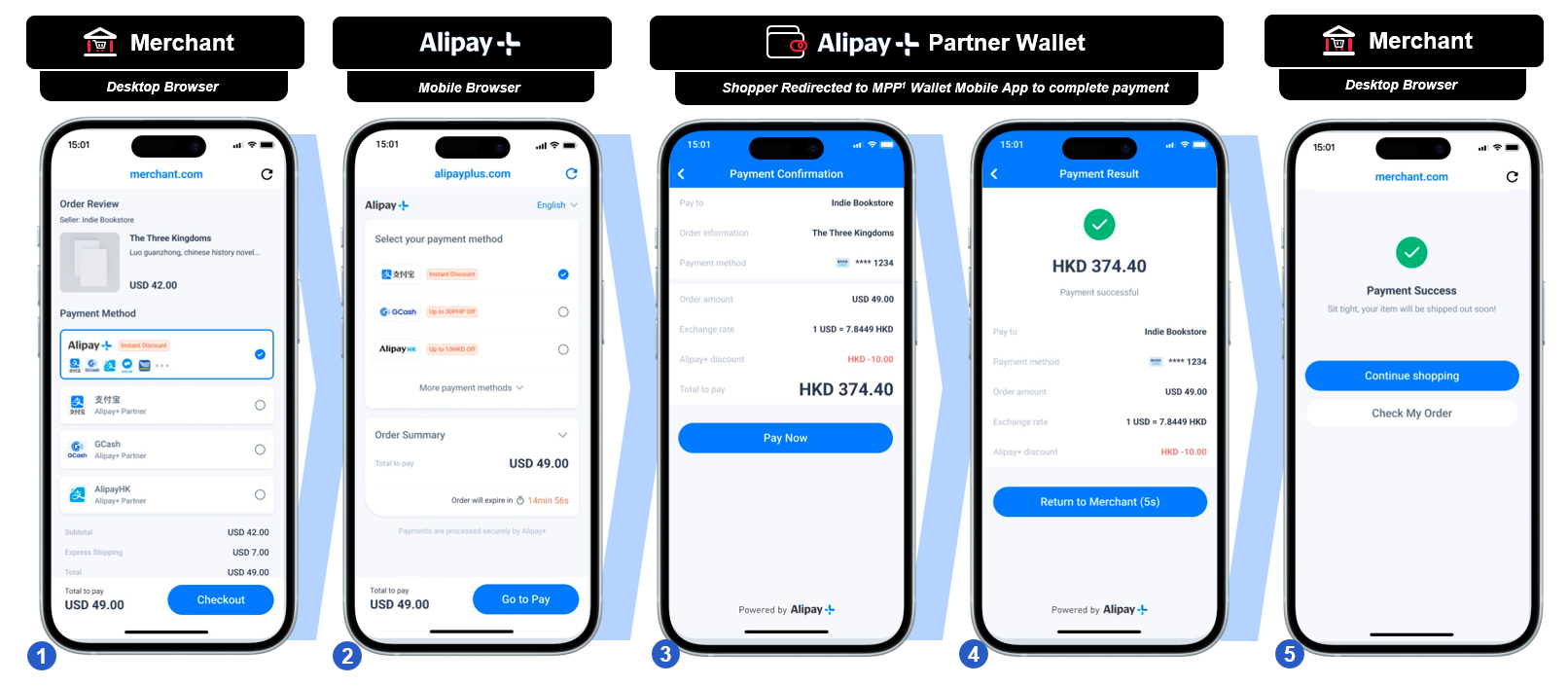
- Your customer chooses Alipay+ as their payment method on your mobile browser site/ in-app checkout page.
- They click on the checkout button and are taken to the Alipay+ checkout page. Alipay+ determines your customer's locally available wallets using their IP address. Locally available wallets are displayed at the top of the page and other wallets below. Your customer chooses their preferred wallet.
- Your customer confirms payment in wallet application e.g. Alipay CN - KaKaoPay.
- They receive confirmation that the payment is successful.
- Your customer is redirected back to your specified
successURL.
For an optimized mobile experience, we strongly recommend passing deviceData object in the request. Supplying these fields ensures that customers who do not have the underlying wallet app on their phone do not see errors.
Use our API reference and set your headers.
POST https://try.access.worldpay-bsh.securedataplatform.com/apmPayments
Apply APM payment details directly using our APMs API, or use our Components SDK to create a session.
Collect the APM details and send an API request with these details to create a payment.
- Tryhttps://try.access.worldpay-bsh.securedataplatform.com/apmPayments
- Livehttps://access.worldpay-bsh.securedataplatform.com/apmPayments
- Payload
- curl
- Python
- Java
- Node.js
- Go
- PHP
- Ruby
- C#
{
  "transactionReference": "Memory265-13/08/1876",
  "orderReference": "apm-order-12345",
  "merchant": {
    "entity": "default"
  },
  "instruction": {
    "method": "alipay_uni",
    "value": {
      "amount": 250,
      "currency": "HKD"
    },
    "narrative": {
      "line1": "Joe Plumbing Ltd"
    },
    "paymentInstrument": {
      "type": "direct",
      "country": "GB"
    },
    "resultUrls": {
      "pending": "https://worldpay-bsh.securedataplatform.com/pending",
      "failure": "https://worldpay-bsh.securedataplatform.com/failure",
      "success": "https://worldpay-bsh.securedataplatform.com/success",
      "cancel": "https://worldpay-bsh.securedataplatform.com/cancel"
    },
    "deviceData": {
      "device": "mobile",
      "operatingSystem": "ios"
    },
    "customer": {
      "firstName": "James",
      "lastName": "Moriarty",
      "email": "moriarty@example.com"
    }
  }
}
For Bizum transactions, please follow this extra regex [a-zA-Z0-9]{4,12}
A reference that you can apply to one or more payments according to your business needs. You may reuse the same reference across multiple payments, for example where:
- the total amount for a single order is split across multiple payments
- you use a single reference for each payment in a recurring agreement or split shipment scenario
Used to route the request in Access Worldpay, created as part of on-boarding.
Object that contains the payment type and details.
Type of payment method.
- ach
- alipay_cn
- alipay_hk
- alipay_uni
- bancomat
- bancontact
- bizum
- blik
- eft
- euteller
- floa
- ideal guest
- ideal recurring
- klarna
- klarna recurring
- klarna token
- konbini
- multibanco
- mybank
- open_banking
- paypal
- paysafecard
- pix
- przelewy
- sepa guest and first recurring
- sepa token
- safetypay
- satispay
- swish
- trustly
- unionpay
- wechatpay
The value of the payment.
The supported ISO 4217 currency codes.
The amount in the lowest denomination of the currency, e.g. pennies for GBP, cents for USD.
The description shown on your customer's bank statement for the payment.
Account type.
Account number of direct debit account.
Routing number of direct debit account.
Check number of the direct debit account.
Company name if a corporate account.
First line of the address.
Second line of the address.
Third line of the address.
Postal code.
City.
State code of the billing address in ISO 3166-2 format.
The supported ISO 3166-1 alpha-2 country codes.
Your customer's email address.
Your customer's first name.
Your customer's last name.
Your unique reference for the customer so that the 'pay faster next time' function can be used during checkout. This allows your customer's chosen bank to be stored for their next payment.
{
  "paymentId": "HZ75WBkfRwmD9YzLSZFnQ5v2I5ddQFtUqfQjfH6MtZWlDSUrxrcX5x_wn93uYUZBrpxTgfQTxtQsmy9dE_z-m-zZvrP-LeCRz0uWrqdvJK9lFEMgr042IFWuXU4qz5JB5ruD3eXP8P1s6nqEcRq5d-NwnkVtXPzEhC9FQ_77m3c",
  "lastEvent": "pending",
  "_links": {
    "self": {
      "href": "https://try.access.worldpay-bsh.securedataplatform.com/apmPayments/HZ75WBkfRwmD9YzLSZFnQ5v2I5ddQFtUqfQjfH6MtZWlDSUrxrcX5x_wn93uYUZBrpxTgfQTxtQsmy9dE_z-m-zZvrP-LeCRz0uWrqdvJK9lFEMgr042IFWuXU4qz5JB5ruD3eXP8P1s6nqEcRq5d-NwnkVtXPzEhC9FQ_77m3c"
    }
  },
  "_actions": {},
  "redirect": "https://secure-test.worldpay-bsh.securedataplatform.com/jsp/test/shopper/APMSTSimulator.jsp?customerRef=3413879489&paymentMethod=ALIPAY_UNI",
  "paymentInstrument": {
    "method": "alipay_uni",
    "type": "direct"
  },
  "commandId": "cmdEy5vwB0krLe9eMwAcE66c0"
}The identifier of the payment resource.
Links to resources related to the request.
The URL to redirect your customer to, or a QR code in Base64 to show to your customer, in order to complete the transaction.
An action ID generated by us, identifying a single merchant interaction.
Payment instrument details for the payment response.
Payment instrument for: ACH, Alipay China, Alipay Hong Kong, Alipay Plus, BANCOMAT Pay, Bancontact, Bizum, BLIK, EFT, Euteller, iDEAL guest, iDEAL recurring, Klarna, Klarna (recurring), Konbini, Multibanco, MyBank, Open Banking, PaysafeCard, Pix, Przelewy24, SafetyPay, Satispay, Swish, Trustly, China UnionPay, WeChat Pay.
For Pix payments - display to your customer for them to copy and paste in the Pix app.
For Swish payments - use this value as the {token} in the custom URL scheme: swish://paymentrequest?token={token}&callbackurl={callbackURL}. This will prompt the app to open, allowing your customer to complete their payment.
Check out our API reference for more responses or error codes.
To simulate payment outcomes and trigger webhooks in our Try environment you can send a request prompting our simulator.
You receive a redirect link to our simulator where you can choose different payment outcomes:
| Simulator outcome option | Payment status | Description |
|---|---|---|
| Authorised | authorized | Payment authorized successfully. |
| Authorised and Captured | sentForSettlement | Your customer’s payment is in the process of being settled. |
| Refused | refused | Unsuccessful payment - failure response from the provider. |
| Error | error | Error in processing the payment or the session timed out. |
| Shopper Cancelled | cancelled | Your customer cancelled the transaction. |
Furthermore, you can use magic values in amount to generate specific outcomes. Adding an amount other than the below magic values shows a happy path.
| Simulator flow | Magic value | Outcome |
|---|---|---|
| Sale | 500 | Error in sale response |
| Reversals with amount | 700 | Error in reversal response, received via webhooks |
Next steps