Last updated: 27 May 2026 | Change log
Customize the Components SDK's appearance, render payment methods and form fields used for data collection.
- two options:
"default"(light mode) and"dark" - assets such as payment method icons adjust according to mode setting
Worldpay.components.init({
  // ...other config
  theme: "dark"
})You can specify the desired payment methods and layout.
Layout options:
accordiontabssolitary
The styling system gives you full control over presentation: use CSS variables for global theming, and CSS classes to target specific DOM elements for fine-grained overrides. This lets you match our embedded checkout UI with your brand design system.
Common CSS variables:
--base-font-size: 16px;
--font-family: 'Inter', Helvetica, Arial, sans-serif;
--color-primary: #1b1b6f;
--color-background: #ffffff;
--color-error: #dd1308;
--color-content-primary: #17171c;
--color-content-secondary: #6a6e87;
Common CSS classes:
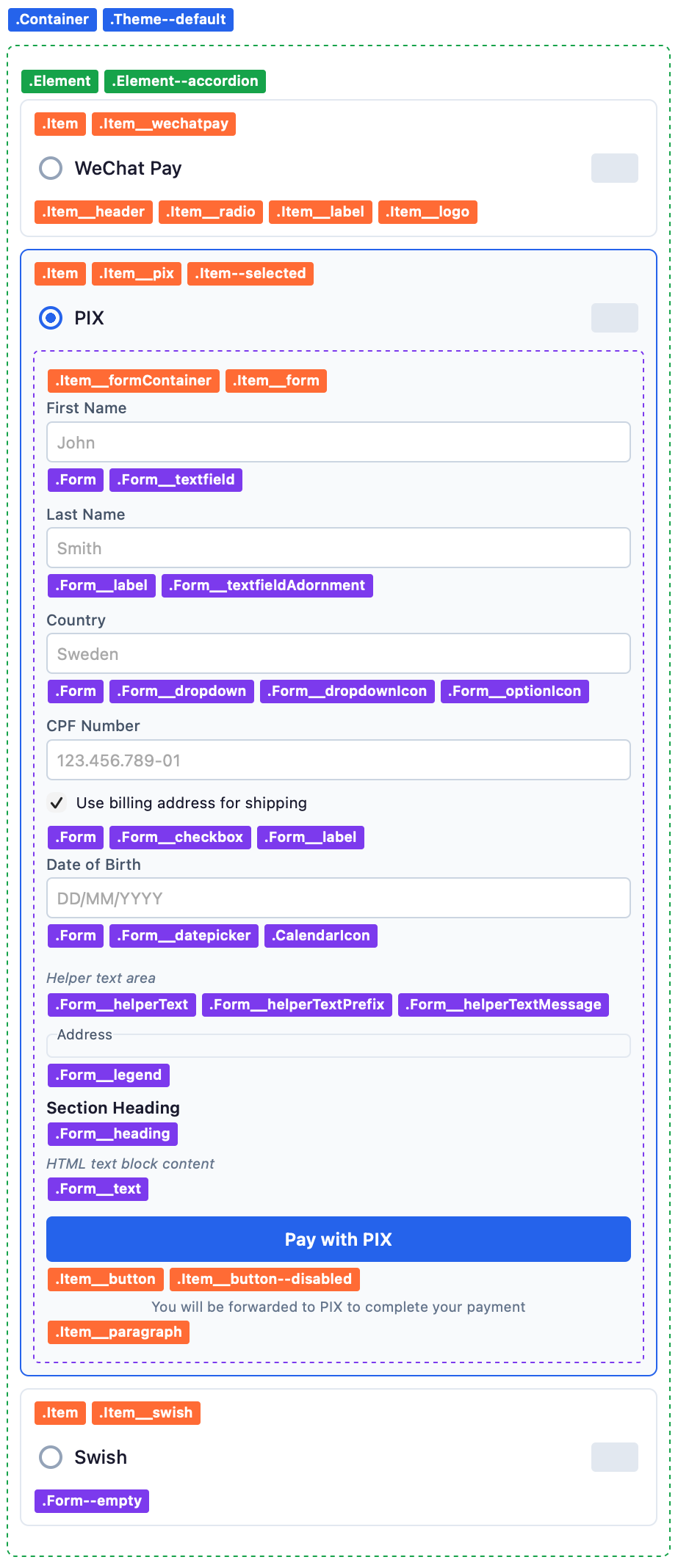
Worldpay.components.init({
  // ...other config
  styles: {
    ":root": {
      "--color-primary": "blue";
    },
    ".Item__label": {
      "font-size": "24px"
    },
    ".Item__sepa .Item__formContainer": {
      "background": "orange"
    }
  }
})You can disable the SDK-hosted button and use triggers and lifecycle hooks to understand your customer's actions.
Worldpay.components.init({
  // ...other config
  advancedConfiguration: {
    hideSubmitButton: true
  }
})You can specify what information the SDK should collect from your customer. The SDK only displays the applicable fields for the selected APM, based on both your request and the APM's requirements
Worldpay.components.init({
  // ...other config
  advancedConfiguration: {
    additionalFields: [
      "name",
      "email",
      "phone",
      "shippingAddress",
      "billingAddress",
      "accountHolderName",
      "dateOfBirth",
      "identityDocuments"
    ]
  }
})| Parameter | Description |
|---|---|
"name" | Displays "First Name" and "Last Name". |
"email" | Displays "Email Address". |
"phone" | Displays "Telephone Number". |
"shippingAddress" | Displays grouped fields:
|
"billingAddress" | Displays grouped fields:
|
"accountHolderName" | Displays "Account Holder Name". |
"dateOfBirth" | Displays "Date of Birth". |
"identityDocuments" | Displays "CPF/CNPJ". |
The mapping between the fields displayed to your customer in the SDK and the fields required by the APMs API is done during payment submission. This ensures that all collected information is correctly formatted and transmitted to the payment provider according to their specifications.
You can programmatically interact with the payment UI, such as submitting forms or selecting specific payment methods without direct user action, or displaying QR codes for supported payment methods.
| Parameter | Type | Description |
|---|---|---|
select | Function | Selects a payment method using a method parameter. |
submit | Function | Submits the payment form programmatically. |
continue | Function | Accepts method and data (generated via a server-side call to the APM service) and allows the SDK to display the next available step for the selected payment method. Note: Only applicable for QR code-specific payment methods. |
resetProcessing | Function | Resets the SDK's processing state (clears the overlay, and re-enables interactivity). |
const components = Worldpay.components.init(config)

components.select('swish')

components.submit()

// WeChat Pay QR code flow
components.continue('wechatpay', {
    qrCode: 'iVBORw0KGgoAAAANSUhEUgAABbQAAAW0AQ...'
})

// Pix flow with QR and transaction code
components.continue('pix', {
    qrCode: 'iVBORw0KGgoAAAANSUhEUgAABbQAAAW0AQ...',
    transactionCode: '00020101021226930014br.gov.bcb.pix2571qrcode-h.pix.celcoin.com.br/...',
})

// Swish QR code flow
components.continue('swish', {
    qrCode: 'iVBORw0KGgoAAAANSUhEUgAABbQAAAW0AQ...'
})

// Swish phone notification flow
components.continue('swish')
Lifecycle hooks enable you to respond to various stages of the payment UI, attach custom interactivity, and handle events such as loading, selection, success, or errors.
| Parameter | Type | Description |
|---|---|---|
onLoad | Function | Called when the payment UI is loaded. |
onSelect | Function | Called when a payment method is selected (with method and selector parameters). |
onSuccess | Function | Called when the form is successfully submitted (with session and method parameters). |
onError | Function | Called when a submission fails (with error, method, selector parameters). |
You can initialize and embed the SDK multiple times on the same webpage.
Some Alternative Payment Methods (APMs) require an additional customer step after the payment is submitted. Pix and WeChat Pay use a QR code flow. Swish supports both QR code and phone notification flows.
Submit the session to the APMs API and receive QR data: For QR-enabled methods, the APMs API response includes a populated
redirectparameter containing QR-code data.Render the QR step in the SDK: Pass the
redirectpayload to the SDK usingcontinuemethod. Example:components.continue('swish', { qrCode: 'iVBORw0KGgoAAAANSUhEUgAABbQAAAW0AQ...' })The hosted iframe displays the QR code.
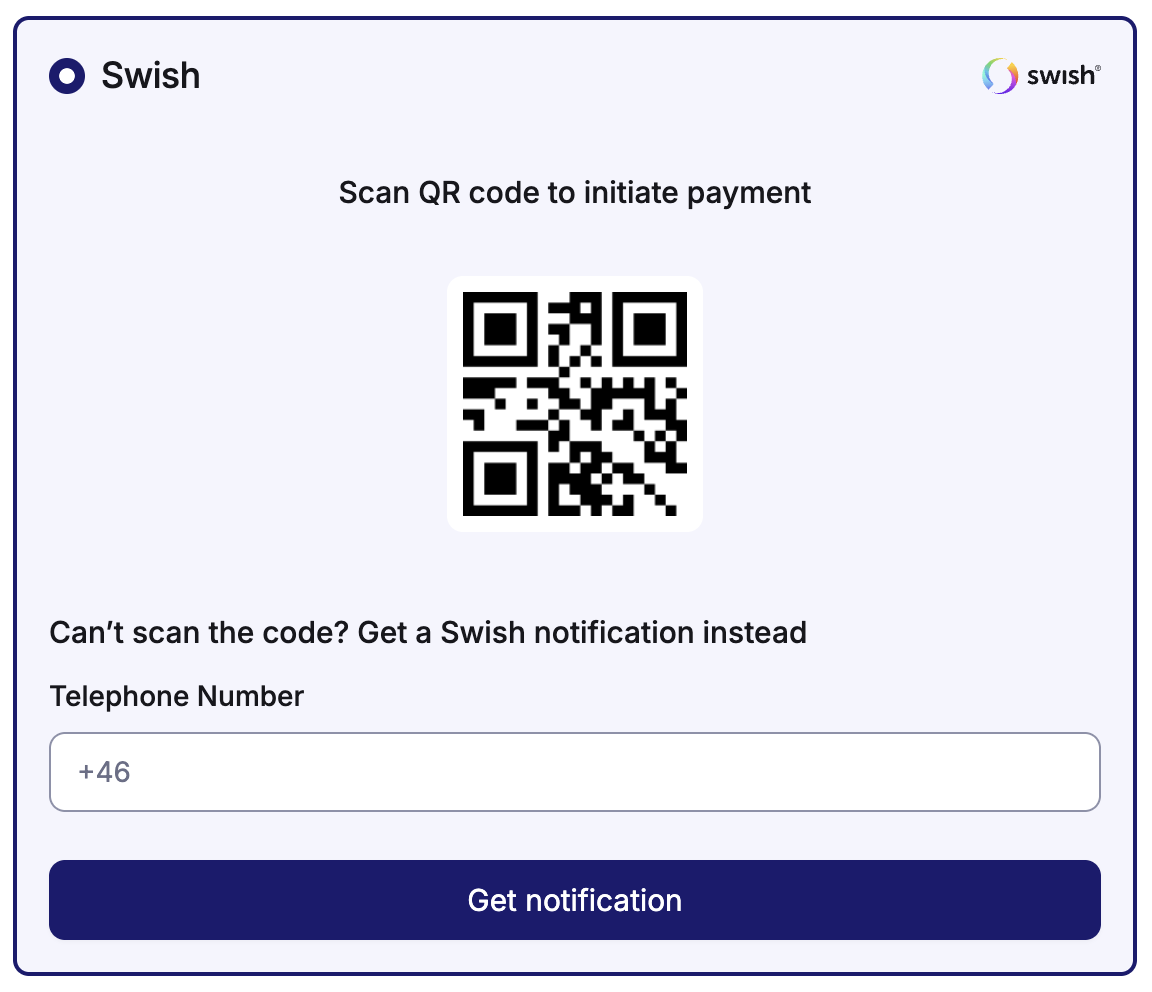
- Customer completes payment externally: Your customer scans the QR code using their mobile device and completes the payment in the provider app.
Submit the session to the APMs API and check
redirect: Ifredirectis empty, your customer chose the Swish phone notification flow.Start the waiting step in the SDK: Call
continuewith no payload (components.continue('swish')). The SDK shows a waiting screen with an 8-minute countdown.
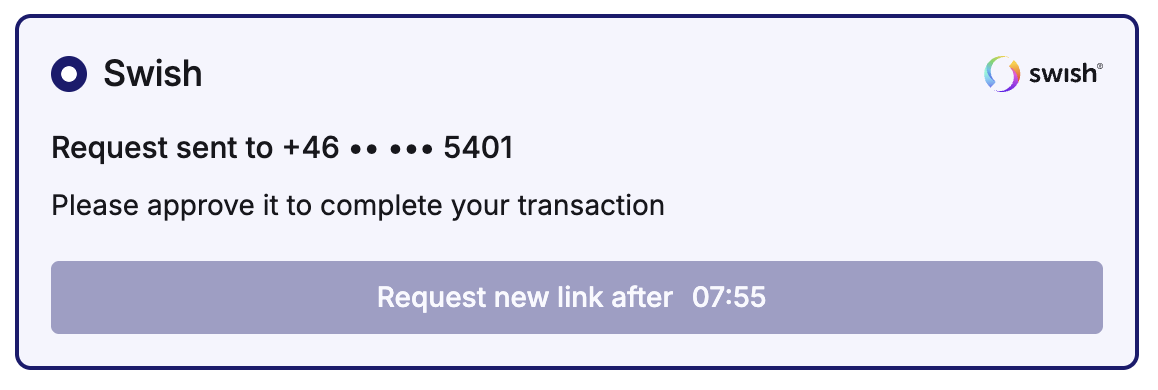
- Customer confirms in Swish app: Your customer receives a phone notification and approves the transaction in the Swish app before the countdown expires.
Monitor payment status: While your customer completes the provider step, poll the status using the relevant API endpoint or consume webhook events.
Redirect on terminal result: After success or failure is confirmed, redirect your customer to your final merchant-hosted page (for example, order confirmation or error page).
- The SDK is responsible for rendering the post-submit step in the iframe (QR display or Swish waiting screen).
- Payment status checks and final redirection must be handled by you.
- Always verify the payment status before showing a final outcome to your customer.
The Components SDK supports Alternative Payment Methods (APMs) that allow for recurring payments. This includes Klarna (recurring), iDEAL, and SEPA. The following steps outline how to use the SDK for both initial and subsequent recurring payment transactions:
- Initial payment data collection: Use the SDK to collect your customer's payment details and initiate the first transaction as you would for a standard payment. The SDK will securely capture all required data for the APM.
- Storing recurring payment data: After the initial transaction is processed, Worldpay generates and stores the necessary information (such as payment tokens or mandates) required for future use.
- Retrieving data for subsequent payments: For any subsequent payment, you don't need to collect your customer's payment details again. Instead, retrieve the mandatory data for the recurring payment from our Events service.
- use the Events API to listen for the
token.createdevent - the event payload contains the payment token or other details that you can use to process future payments without further customer interaction
- use the Events API to listen for the
- Processing subsequent payments: Use the retrieved data to initiate subsequent payments through our APMs API. You only use the SDK for the initial collection of payment details.
The hosted iframe ensures sensitive payment data never touches your servers. All communications between the SDK, iframe, and Worldpay are encrypted.
Our components work with all recent versions of major browsers
- Chrome
- Edge
- Firefox
- Safari